Category: Web Design

Web Design and SEO – How to Build the Perfect Site for Traffic & Conversions

Whether you’re an agency, in-house, or DIY marketer for your own company, you know how critical your website is to the success of your business. Unfortunately, some businesses invest tens of hours and thousands of dollars into their websites without considering how they will attract visitors and generate business leads.

You do a quick online search – “Why is no one visiting my website?” All results point to one diagnosis: you need to do search engine optimization (SEO).

If you have any experience with web design, you’ve surely gotten an earful from an SEO professional at one point or another about how you’re doing it all wrong. While that’s not entirely true, let’s figure out why search engine optimization specialists are so passionate about pointing fingers at web designers and developers.

What Is SEO Website Design?

SEO web design is the practice of mapping out a plan to generate organic traffic, then designing a website according to that plan. This approach is counter to the traditional website design process where a site is built to look attractive with no strategy for generating traffic or customers.

The underlying goal of both marketers and website designers is the same – build a great website. However, there is misalignment between a marketer’s and web designer’s concept of an effective business website. Web development and SEO teams must agree on what makes a good business website before they can succeed.

The goal of a business is to have a website that serves existing customers, attracts/converts potential customers, and results in a significant return on investment.

Don’t leave money on the table by using a sub-par website. Download this free eBook today to discover the 24 website must-haves that could improve your revenue today!

When web design and SEO teams work together, the result is an attractive and SEO-friendly website that exceeds business expectations and revenue goals.

How to Build an SEO-Friendly Website

SEO-friendly website design requires that you front-load the process with strategy and planning, then execute after the bulk of the work is laid out. In the end, SEO web development ends up being about 60% planning and 40% execution.

The following considerations will help build a solid understanding of SEO for web developers. You can use these SEO website design tips to refine your current process and deliver a higher quality product.

Create a Keyword Map

Based on the industry and products/services that your business (or client’s business) offers, you will already have a good idea of which pages your website needs to include. Where business owners and web designers usually go wrong is not delineating each product/service into a definite keyword group. What does that mean?

Imagine that you are creating a website for a plastic surgery practice that specializes in facelifts and butt lifts. You may decide that you want a homepage and a surgeries page on your site. Unfortunately, your surgeries page probably won’t rank well for either of your procedures because it doesn’t cater to a single group of keywords.

A searcher looking for facelifts probably doesn’t want to see a page about butt lifts AND facelifts. They want to see a page about facelifts only. Your facelifts page won’t appear in search results because the main topic isn’t clear.
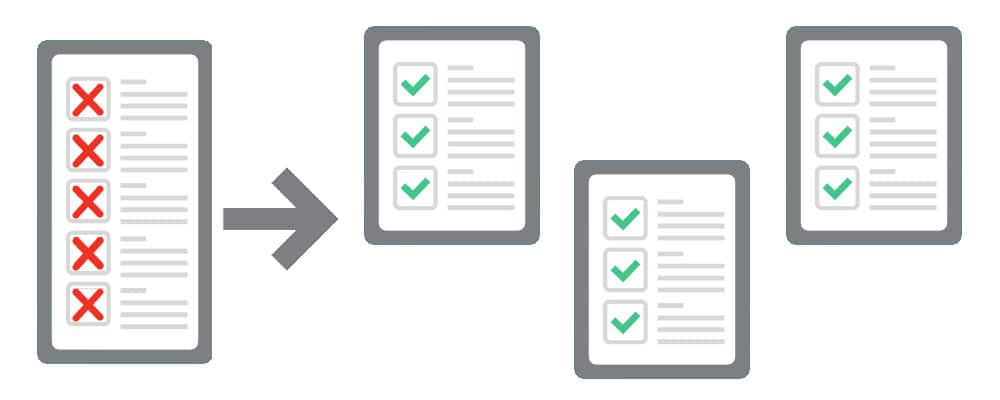
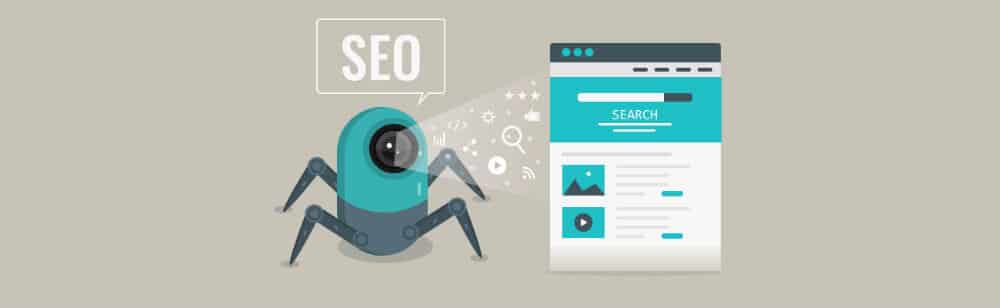
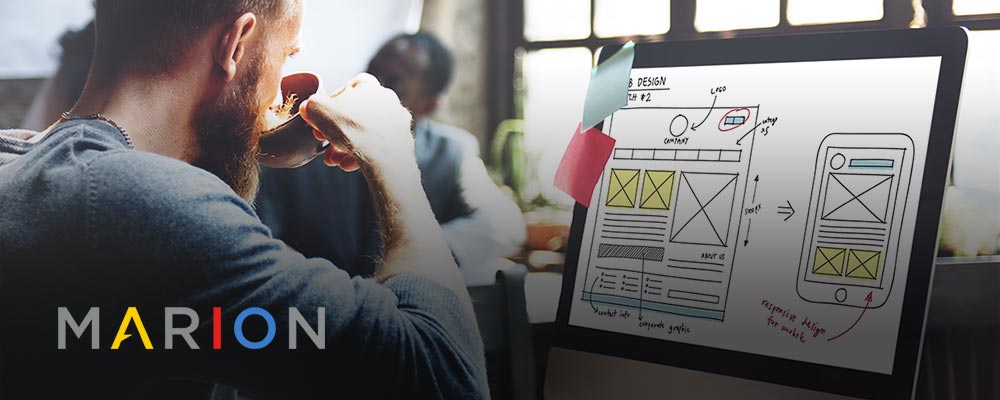
what is SEO meaning in web design?

For the best search engine optimization, you need to design a homepage, a facelift page, and a butt lift page.  Your homepage can be about plastic surgery operations in general, but your sub-pages should focus on their respective operations.

Use a tool like SEMrush to identify which keywords you need to use. This is a paid tool that will cost about $100/month, but it helps you identify which keywords people are searching for online.

Once you research a list of relevant keywords for your website, break them up into separate groups and optimize each page for those search terms.

Domain Name

Choosing a domain name is an incredibly important decision that usually isn’t given enough weight. If you have a well-thought-out brand development strategy, it’s natural to include your brand name in your domain name. While this is a perfectly good business move, a good strategy for web SEO and design is to include a keyword in your domain name.

Despite Google’s 2012 filter to prevent spammy, low-quality sites from ranking with exact match domain (EMD) names, there are still benefits to including a keyword in your domain as long as your website is high-quality.

Having one of your main target keywords in your domain name will help tie your business entity to a specific topic. For example, a local business website might include its city name in its domain name to help bolster its digital authority for that location.

A plastic surgeon in Houston might use their business brand as their domain name. After optimizing their website for several years, they could rank for highly competitive keywords. Had that same plastic surgeon established a domain name with their brand name plus “Houston,” they would have been able to rank for the same competitive keywords much sooner.

Keep in mind that your domain name must align with your business vision. If you have any hopes of growing your business into a statewide, nationwide, or global organization, you should avoid including a local identifier in your domain.

Alternatively, you could use a topical keyword in your domain name that doesn’t restrict your locality. Using your brand name plus a relevant keyword is a good approach that will accelerate your SEO results. This too can be limiting if your business model changes, and you need to evolve beyond the keyword in your domain name.

For example, if Nike had chosen the domain name nikeshoes.com while creating its digital presence, they would have limited their capacity to rank for other apparel like sweatpants and hoodies. Always balance your brand and SEO strategy while choosing a domain name.
SEO for web developers

Web Hosting

Web hosting is a critical piece of SEO-friendly website development for several reasons. Your web hosting will have implications for cost, page load speed, quality assurance, and security.

A cheaper web hosting provider may seem like a great short-term financial move, but they may cause your web pages to load more slowly than a more expensive host. This can have negative SEO effects, increase your bounce rate, and decrease your customer conversions. You can read more about speed factors in our article about new website SEO.

A more expensive web host may also have better security measures in place, making it harder for hackers to harm your site. If something does happen to your website, a good hosting provider will usually have backups that you can restore. Find a balance between cost and features when it comes to selecting a host.

CMS/Site Platform

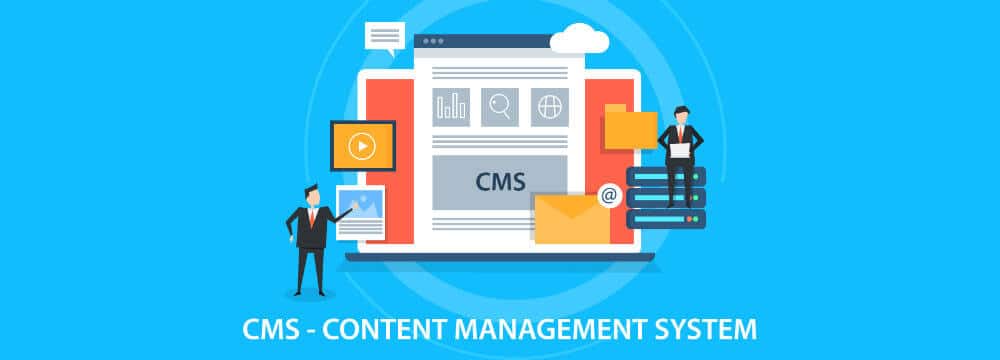
A lot of your web design SEO will depend on the platform you choose for your site. More advanced developers may decide to build an entirely custom website. However, most businesses use some sort of content management system (CMS) or website builder for their site, making it easier to manage on an ongoing basis.

One of the most popular platforms for websites is WordPress (WP). This CMS works well for both website design and SEO goals, and gives business stakeholders the option to manage their own site after it’s built.

There are other platforms like Wix, Squarespace, Weebly, or Shopify. Each has their strengths and weaknesses, but we highly recommend using WordPress because of its versatility and broad user base. Because so many people use WP, there is plenty of documentation available on the web in case you run into an issue.

WordPress comes with a lot of SEO features built-in. For example, these features let you edit your meta title, page title, URL and meta description very easily. These features are frequently overlooked by web designers because they have little to do with the aesthetic of the page.

Page Load Speed

A website with cutting edge features and high-resolution graphics is the calling card of a web designer. Unfortunately, large resources and process-heavy websites tend to load slowly. On top of that, the popularity of accessing the web on mobile devices over slower internet connections is rising. If your website is too intricate to load quickly over a mobile connection, you will lose visitors and rankings.

In July 2018, Google rolled out its Speed Update that negatively affects the rankings of websites that load extraordinarily slow. The increasing importance of website load time encourages a balancing act between web design and search engine optimization.
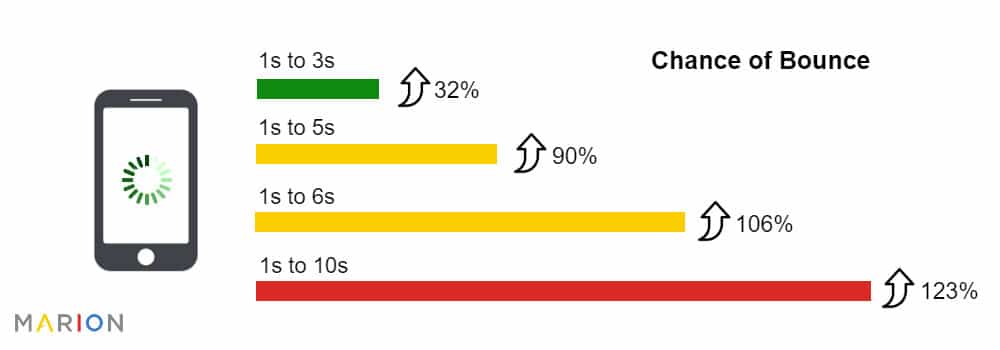
what does SEO mean in web design?

An SEO-friendly design should include:

  • Properly sized images – don’t upload large images and let your CMS scale them down to size.
  • Compressed images – compress image files so that they load more quickly.
  • Minified and Combined CSS and JavaScript files – fewer server requests can help speed up page load times.
  • No Redirects – make sure there aren’t unnecessary redirects within your site when a page URL changes.
  • No hot-linked images – include code that restricts other sites from embedding one of your native images on their pages. This will use your server to load images for their audience.

SEO specialists frequently take issue with designers who disregard the load speed of a website. Perhaps the biggest website development SEO takeaway in this article is to consider the consequences of all design elements on a site.

Designers and developers can use Google PageSpeed Insights and the Lighthouse tool within Chrome Dev Tools to identify and resolve loading issues. To easily find internal redirects or images with large file sizes, use Screaming Frog to do a crawl of your site.

User Experience (UX)

User experience is website aspect that designers generally handle better than SEO experts. It’s hard to disagree with the fact that a beautiful, awe-inspiring site is great for users.

When it comes to UX, website design & SEO are usually at odds over user intent. A beautiful homepage will impress a user, but what purpose is the homepage serving? If your homepage doesn’t account for the needs of a visitor and help them take an informed next step, you have a problem.

For example, a law firm website that features a high-resolution picture of the legal team and an About Us button front and center might seem appropriate at first glance. However, users might be more interested in recent cases that you’ve won, the areas of law that the firm specializes in, and the pricing of the firm’s services.

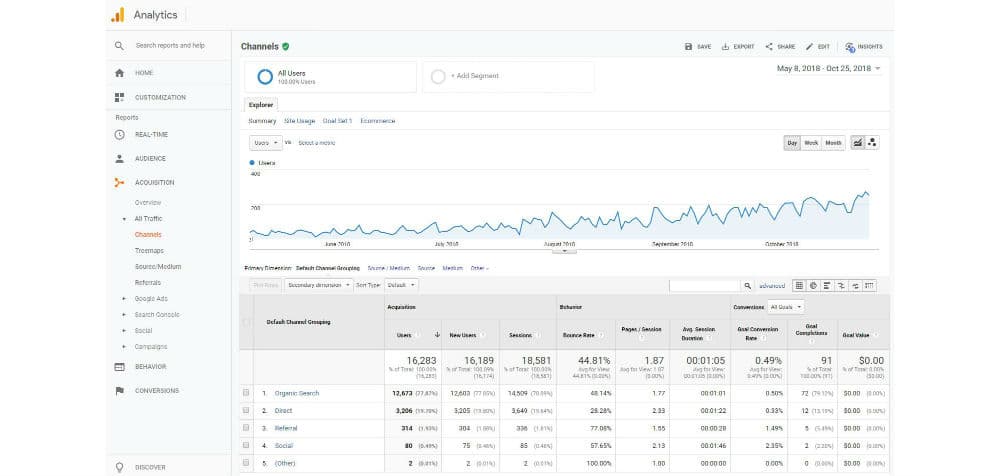
A great way to uncover potential UX issues on a website is to install Google Analytics and periodically analyze visitor behavior. The behavior flow report is an easy way to see where users enter and exit your site. If the bounce rate on any given page seems high, try A/B testing different site components.

Potential features you can test include:

  • Site navigation
  • Call to action button styles
  • Call to action button text
  • Call to action placements
  • Prevalent page content
  • Placement of trust indicators like case studies, testimonials, and accreditations

Be sure to keep page load speed in mind as well. A slow site is not only bad for SEO performance but bad for users as well.

Indexation & Crawlability

For search engines to easily access your web pages, you need to have a few technical SEO pieces in place. These pieces include:

  • good sitewide navigation
  • a sitemap
  • non-restrictive robots.txt and meta robots
  • good information architecture
  • relevant internal links (which we will cover in the next section).

Designers will almost always include good navigational elements (think header, footer, and sidebar) because they are a standard part of web design. However, the other pieces operate mostly behind the scenes. Forgetting to include them can be a major impediment to making your website SEO-friendly.
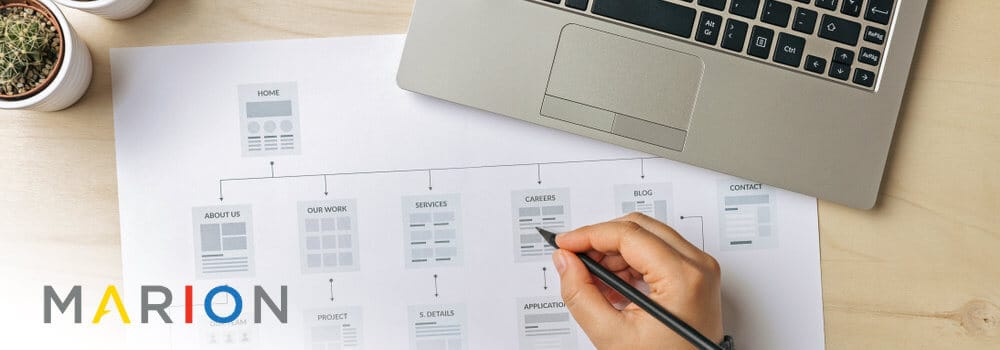
web design and SEO

Sitemaps

A sitemap is like a table of contents for your website. An HTML sitemap is a user-friendly list that visitors can use to see all your pages, and quickly find the information they need. An XML sitemap is a search engine friendly sitemap that robots use to identify and crawl the pages on your site. Both are important for being found by your target audience.

If you’re using WordPress, generating an XML sitemap is as easy as downloading the free Yoast SEO plugin, and enabling your sitemap. HTML sitemaps, on the other hand, aren’t always necessary if you have good header and footer navigation.

Creating an XML sitemap and submitting it to Google Search Console is a critical component of SEO for web developers. Skipping this process could severely limit traffic to your site and restrict your website’s ability to convert customers and generate revenue.

Robots

Robots.txt is a file that you can access by typing your domain name in the URL bar and appending robots.txt to the end. This is like the guest list at a high-profile event… but for robots. If a robot isn’t on the list, it can’t access your website. Meta robots are HTML tags that you can include on a page-by-page basis to restrict certain pages from being included in a search engine index.

Robots directives are important because they could accidentally restrict access to your website. For example, developers frequently use robots.txt to restrict a website while it is under development. If your website is accidentally launched without removing these instructions, you might be hiding your site from important digital stakeholders.

The scope of this post won’t get into the details around website robots, but feel free to check out this post about how to prevent Google indexing using robots directives.

Information Architecture and Site Structure

Good information architecture is a very important aspect of search engine optimization. An SEO-friendly website structure can help search engines and users understand where they are on your site. This helps to build a schema of your content that influences how well your pages rank organically.

For example, an oil and gas website design might include different products relating to upstream, midstream, and downstream processes. Consider how you might structure the URLs for a LACT unit if your site offers several products that relate to different parts of the O&G supply chain.

Your homepage URL is just your main domain name. You should optimize your homepage for the overarching theme of your website. In this case, you might optimize your homepage for “oil and gas equipment.”

The next directory down, you will include your logical subsections. For your oil and gas site, your sub-directories will look like:

  • com/upstream/
  • com/midstream/
  • com/downstream/

The next directory down will contain each of the products as they relate to your sub-directories. The sub-sub-directory for your LACT unit would be yourdomain.com/midstream/lact-unit/. When someone visits this page, they will intuit that you have several midstream products and products for the upstream and downstream markets.

This directory structure will also help your homepage rank better for “oil and gas equipment” because search engines can see that you have an exhaustive selection of equipment for the entire O&G industry. Because of the useful content on your site, you are highly likely to satisfy the needs of a searcher.

Internal Links

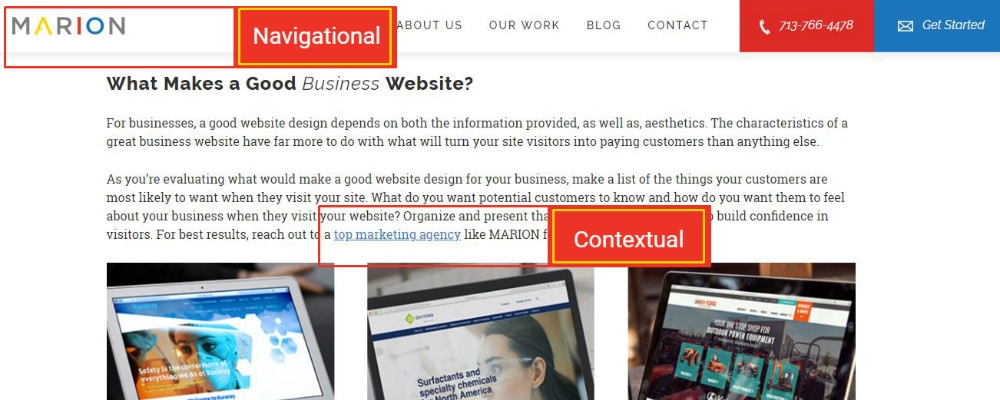
Internal links are the links from one page of your site to another. Internal links are either navigational or contextual by nature.
what is SEO in website development?

At the 22 minute mark of this 2016 Google Webmaster Hangout, Google Spokesperson John Mueller talks about how Google uses internal links within your website. Mueller points out that contextual links within the main content of your site are treated differently than your navigational links.

Navigational links are important for search engines that need to crawl your website and index your pages. They are also important for users to explore your website and quickly find what they need.

Contextual links are important to search engines and web visitors for the same reason, but give a greater indication of what the destination page is about. This is because your link anchor text gives hints about where you will end up when you click a link.

For example, imagine that you are designing a construction company website. When Google sees a link in your footer with the anchor text “home” and the URL to your homepage, it knows that you’re linking to your homepage. When Google sees a link in a blog article about how to choose a commercial contractor that uses the anchor text “top-rated commercial construction company” and the URL to your homepage, it gives context as to what your homepage is about.

Using navigational and contextual links are both important for navigating your website. However, contextual internal links within the main content of a relevant page that use descriptive anchor text are important to your rankings. This sort of insight can help designers create a search engine-friendly web design that delights users as well.

Contact MARION for SEO Website Design Today

MARION’s team is comprised of award-winning web designers and experienced SEO strategists that can help build a high-performance website for your business. Our marketing agency has been helping businesses excel for nearly 40 years and is ready to do the same for you.

Contact us today to schedule a consultation and learn how our Houston SEO services and custom web design services can help you grow!

Marketing emails you’ll actually want to read.

Get marketing tips and news sent to 
your inbox.
This field is for validation purposes and should be left unchanged.
Name(Required)

What Makes a Good Website? – Effective Business Website Design

Your website will most likely serve as your business’s first impression for potential customers. But, advice can range dramatically from one person to another about what makes a great website–one that engages and attracts buyers, and builds confidence in your brand.

Before you can create a great website, it’s important to know what the typical customer will be interested in learning when visiting your site. If you’re a local business, it may just be that they need directions, prices, or contact information. If you offer services, your site’s visitors might be most interested in making an appointment or reading testimonials from satisfied customers.

Like it or not, in our digital world, having a great website is essential if you’re looking to grow your business. If you’re interested in learning how to make a great website, we’re here to help. Keep reading for some basic tips for creating your own website, or, for those who already have a strong online presence, we’ll help you apply effective website design concepts to your existing site.

What Makes a Great Website?

As you spend time on the web, you may not have stopped to think about what actually makes a good website. What components cause you to buy from one company’s site versus another? The elements used to create a good website likely affect visitors on a subliminal level. The best designs minimize distractions, are easy to navigate, and clearly communicate your story.

What Makes a Good Business Website?

For businesses, a good website design depends on both the information provided, as well as, aesthetics. The characteristics of a great business website have far more to do with what will turn your site visitors into paying customers than anything else.

As you’re evaluating what would make a good website design for your business, make a list of the things your customers are most likely to want when they visit your site. What do you want potential customers to know and how do you want them to feel about your business when they visit your website? Organize and present that information clearly to help build confidence in visitors. For best results, reach out to a top marketing agency like MARION for help.

how to make a good website

3 Characteristics of a Great Website

First, whether designing a new website or updating and existing one, it’s important to consider what your customers will see. Branding is important, and a great website will consistently reinforce it. Studies show that 94 percent of first impressions of a website are design-related.

Want to take your website to the next level, but you’re on a budget? Download this free eBook with 24 website must haves that will help improve your site today!

In addition to a simple, attractive design, it’s important that your website design match other existing branding. Maybe you need to update or create branding guidelines for your business. A branding agency like MARION can help with that, too.

1. Your Website Reflects Your Business/Brand

One of the top principles of great web design is that you should update your site’s look and feel to current standards. An outdated design gives a bad impression. And, if your website is behind the times, your customers will get the impression that your products and services are, too.

2. Your Website Is Expandable If You Offer New Products/Services

Next, your website should allow for easy expansion allowing for additional products and services. As you’re researching how to format your website, notice that navigation and menu structure is vital to clearly presenting products and service to site visitors. Your sitemap needs to match the long-term goals of your business. What makes a great business website is not only that it’s great today, but that it can also expand as your business grows.

3. Your Website Is Easy to Use and Navigate

Then, make sure your website is easy to use and navigate. Potential customers should be able to easily find the information they need. An easy-to-use menu is fundamental to good web design. Creating a successful website is often something as simple as customers being able to quickly find product information, how to book an appointment, and contact information.

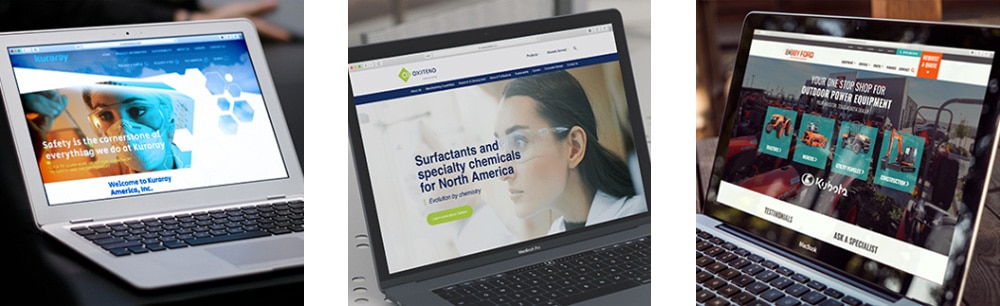
The top custom website design firms in Houston can help design an aesthetic and functional business website. Check out MARION’s work to see some B2B web design examples.

features of a good website design

How to Make a Good Website

When it’s time to get started on design, it’s important to know the basics of how to make a great website. It can help to look at other business websites and evaluate what makes a great website and what doesn’t. Here are a couple of things to help get you started.

Incorporate a Good Logo, Graphics, and Consistent Branding

Consistency is key when creating a great website. Effective website design also means making sure the overall impression customers get matches your brand. Start with your logo if you already have one, and choose fonts, colors, and graphics that reinforce your brand. If you’re a law firm, the characteristics of a great website may mean simplicity and formality, whereas a day care may use fun colors and more playful fonts. If you’re hiring someone else to do your graphic design, make sure you understand the important pieces of writing a design brief for graphic designers.

If you don’t already have a logo, MARION can provide professional logo creation services. Like all things design, you get what you pay for. Don’t be afraid to invest in the future of your company by establishing an elegant logo that captures the essence of your brand.

Provide Your Company Information in the Expected Places

Customers must be able to easily find the information they need. This includes your location, contact information, and description of your products. A great website design makes that information easily accessible.

Company information is often found on an About Us page, as well as at the bottom of every page. Working with a firm like MARION that provides professional web design in Austin can help you ensure your site is as customer friendly as possible.

Make Sure Your Contact Information Is Consistent (Consistent NAP)

Make sure that contact information is up-to-date at all times. Name, address, and phone number (NAP), is an important part of SEO, and one of the most vital features of great website design. Failure to keep this information current may prevent customers from contacting you, and may also negatively affect your ranking in search results.

Build Your Site to Be Responsive

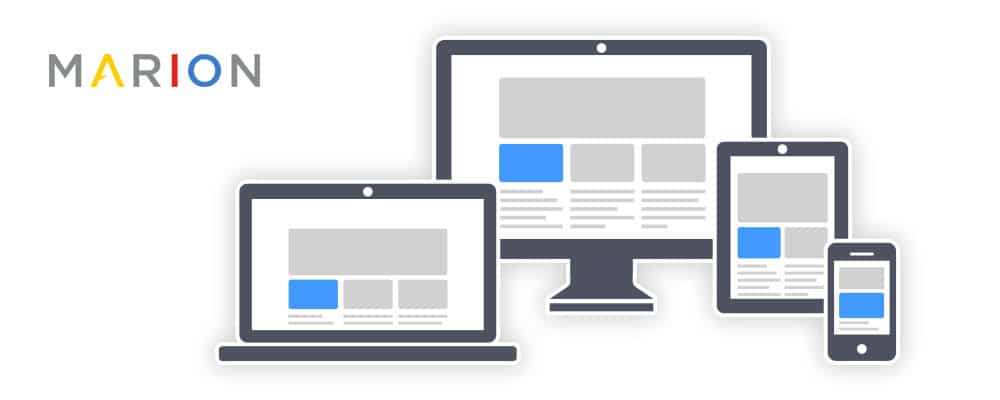
At this point, responsive web design is more than just a trend, it’s vital, and among the very basic features of what makes a website successful. As one of the most popular website design features, responsive web design simply means your pages automatically scale to fit the size of the screen, whether it’s being viewed from a smartphone, tablet, laptop or desktop computer. Because mobile internet usage took the lead over desktop computers in 2018 with 63 percent of internet visits, this is one of the most important aspects of making a great website.

great website design features - responsive

Optimize Your Website for SEO

If your pages don’t rank, customers won’t be able to find you. Optimizing your pages is a major component of what makes a successful website. Here is an SEO checklist for new websites that will help you implement a high-performing SEO website design.

effective website design - SEO

Fast Web Page Load Speed Is Critical

Search engines want to make the browsing experience as pleasant as possible for consumers. Part of what makes a great website is fast page load speed. If your site loads too slowly, you’ll be penalized. If your graphics or videos are too large to load or begin streaming quickly, your design could be negatively affecting your company’s bottom line.

Optimize Your Website for CRO

The ability to assess conversion rates is another factor that can make a website great. Build in ways to regularly test how many of your visitors turn into paying customers. This may include A/B testing and setting up analytics to monitor how customers interact with your site. Continued CRO is a great way to get leads for your business over time.

create a good website - testimonials

Add Testimonials and Testimonial Videos from Customers

Effective website design means making sure visitors get what they need. If possible, include written or video reviews of your products and services on your website. Up to 70 percent of consumers check reviews before buying a product.

Text testimonials are better for your SEO efforts than using video reviews only. If you choose to use video, include a transcript to get the most out of your SEO efforts.

what makes a good business website? - secure

Secure Your Site with SSL and Firewall Protection

No features of good website design matter if your site isn’t secure. Not only are there big HTTP vs. HTTPS SEO differences, but it will drive away customers who get security alerts from their browser or virus protection software. If you aren’t sure how to get the proper security certification for your site, you can work with an experienced web developer to make sure your site is safe.

If you’re ready to create a good website for your business, trust an experienced design team. We can get you started by going through your business objectives, helping you learn more about your target audience, and creating a site that gets results. Get in touch with MARION about our web design services today.

Marketing emails you’ll actually want to read.

Get marketing tips and news sent to 
your inbox.
This field is for validation purposes and should be left unchanged.
Name(Required)

How to Do SEO for a New Website – 9 Step Checklist

Launching a new website is a big step for your business. Whether you’re replacing an old website or you’re breaking new ground, you stand to gain a lot from this new digital marketing tool.

Avoid the common trap that many businesses fall victim to – designing sites for visual appeal only. While sites should be aesthetically pleasing to visitors, they should also be SEO-friendly and compatible with your marketing goals.

To prevent your business from sinking thousands into an attractive but useless online catalog, learn how to start SEO for your new website before it’s too late.

9 Step SEO Checklist for New Websites

To attract your ideal customers to your site, follow these SEO steps for your new website.

1. Create a Keyword Map

Before you even begin designing new pages or laying out your site, create a conceptual map of what you hope to rank for. We call this a “keyword map,” and you can use it to develop your site structure.

To get a better understanding of keyword maps, consider this example about SEO for law firms.

SEO tips for new website

Determine the main topic or several main topics that you’d ideally like to be found for. From there, build a hierarchy with those main topics at the top.

Once you have your topic map created, do keyword research to determine a list of keywords that each page should rank for. To keep things simple, each topic should have about five related keywords that you will optimize for.

A keyword map is a great example of how to start SEO for a new website. It gives you an idea of how to structure your URLs, and how many different page designs you will need for each level. If you need further guidance, consider doing a quick website SEO analysis for more details.

2. Choose Domain Name

Choosing a domain name is a critical step in the SEO process for your new website. Your domain name will be tied to your brand for years to come, and it’s difficult to start over once you’ve built SEO signals to your domain.

In step one of your SEO checklist for new websites, you identified the most important keywords for your website. Use the phrases at the top of your keyword map to influence your domain name selection.

Using keywords in your domain has been an SEO practice for over a decade. In 2012, Google introduced an algorithm update that decreased the effectiveness of using an exact keyword in your domain name (called EMDs or Exact Match Domains). Despite this algorithm update, including a keyword in your domain, and even within your business name, remains an effective way to rank well in organic search results.

If you use the law firm example above, you might decide that including “divorce law” in your domain name would be beneficial. Consider pairing your brand name and a relevant keyword together for the best results. If I were to start a law firm site, I might decide on the domain www.tonydivorcelaw.com.

3. Mobile Usability and Responsive Design

As of 2015, the majority of Google searches are conducted on mobile devices. In 2018, Google introduced mobile-first indexing for the majority of websites in their index.

If you’re designing your website for desktops and neglecting the mobile user-experience, your rankings (and potential customers) will suffer. One of the best SEO tips for a new website is to put mobile first. Google has a free tool to help you test whether or not a page is mobile friendly.

Make responsive web design the standard for your business website. Any time you build a new feature or run a promotion, make sure it looks good on your phone. This includes new landing pages, emails, or even images that you include in blog posts on your site.

If you’re using a website design company to build your new business site, check out their previous work to make sure they excel at responsive design. Follow our guide on how to choose a website designer for more tips on evaluating web designers.

Not sure what makes a great website? Download our eBook about 24 Website Must Haves to improve your website performance today!

4. Speed

As of July 2018, load speed affects SEO for new websites more than ever. On July 9th, 2018 Google announced the “Speed Update” that introduced page speed as a ranking factor for searches on mobile devices.

If your pages load slowly on mobile, your rankings will decrease, and your bounce rates will increase. The negative effect will be compounded because user signals like high bounce rate can negatively impact your rankings.

SEO before website launch speed

You can use the Google PageSpeed Insights tool to measure your site’s load speed. This tool measures two metrics that are important to new website SEO: page speed and optimization.

Page Speed

Page speed is measured by two factors: time to first contentful pain (FCP), and DOM content loaded (DCL). FCP is the amount of time it takes for a user’s browser to produce a visual response when a page is visited. DCL is the time it takes for the actual HTML page to be loaded and parsed by a browser.

In general, FCP will be more dependent on server response times. You can use a content delivery network (CDN) or high-performance web host to increase load speeds.

A CDN creates copies of your site and houses them on servers spread across the world. This reduces the physical distance between your website and a user so that your pages load quickly. A good analogy is using an ATM instead of going to your main bank location each time you need to withdraw cash.

Your DCL will be affected by your website delivery. If you’re using a website builder or CMS like WordPress, make sure you’re using a recent version of PHP so that your website reacts and loads quickly.

The scripts and other components of your site will also take time to load. By correctly minifying, compressing, combining and placing the different resources on your pages, you can increase your DCL. This is where the optimization part of your site speed comes into play.

Optimization

Your optimization is a measure of how well you implement best practices for fast load times. Google PageSpeed Insights lists several suggestions for better speed optimization and average page load times.

Optimization factors include:

  • Optimizing images
  • Reducing server response times
  • Eliminating render-blocking JavaScript and CSS in above-fold content
  • Use Browser Caching
  • Minifying HTML, CSS and scripts
  • Enabling resource compression

For users to benefit, you need to make sure your site is optimized, and your pages are loading quickly. This will have a positive benefit on your SEO before website launch, and your users will be less likely to bounce.

5. Can Search Engines Crawl and Index?

SEO checklist for new websites

There are some obvious components to making sure your site can be crawled and indexed. For example, check your robots.txt file to make sure you aren’t hiding important pages from search engines.

Robots.txt

To check your robots.txt file, enter the URL of your domain into your browser with robots.txt appended. If your site is at example.com, you will type the following into your browser.

https://example.com/robots.txt

Make sure that you don’t see the following:

User-agent: *
Disallow: /

This code would prevent all search engines and crawlers from accessing any part of your site. You can also see different user-agents explicitly listed with corresponding URIs (URLs without your domain name at the beginning) that you don’t want search engines to crawl.

Meta Robots Tags

Check to make sure that your important pages don’t have meta robots tags on them. I’ve heard horror stories about developers that have activated new websites with noindex/nofollow meta tags on every page. A noindex/nofollow meta robots HTML tag will look like the following.

<meta name=”robots” content=”noindex,nofollow” />

Noindex means that you don’t want search engines to include your page in their index. Nofollow means that you don’t want search engines to let the links on your page pass SEO value.

Note that including meta robots tags on your page does not prevent search engines from crawling it. They can still access and read all your page content, but they won’t record it in their index.

Sometimes, even when you include a noindex or nofollow tag on a page, search engines will ignore your instructions and index the page anyway. In this situation, you can use the Google Search Console URL Removal Tool to deindex the page.

XML Sitemap

While learning how to do SEO for a new website, make sure you understand how to use an XML sitemap. Providing search engines with an XML sitemap is like adding a table of contents to a book. XML sitemaps make it easy for search engines to crawl your pages and understand what your site is all about.

If you’re using a CMS like WordPress (I highly recommend that you do), you can use the free Yoast SEO plugin to automatically create your sitemap. Any time you add or remove pages, the plugin will automatically update your sitemap so that you don’t have to make manual adjustments.

Steps 4 and 5 above involve some coding, and that can be very intimidating to business owners or marketing executives. If you need help with WordPress development in Houston, contact the experts at MARION today.

6. Set Up Tracking Codes

Make sure you can measure the effectiveness of an SEO strategy for your new website. To do this, you can use several tools.

If your company already uses a CRM or a data analytics tool, you’ll want to make sure you have the necessary integrations set up. However, if this is your first time around, here are some free tools that you can use before you start SEO for your new website.

best SEO strategy for new website

You can use the data from Google Analytics to determine which of your pages are being visited and engaged with, and where those visitors came from.

Google Search Console and Bing Webmasters tools will help with basic SEO for new websites. These tools will identify which search terms potential customers are using to find your pages, and where your pages rank. You can also use these tools to identify which of your pages are linked to the most and if there are any indexing issues on your site.

The step-by-step SEO for your new website should include these tracking tools so that you know if your marketing is effective, and where to make improvements. There are also paid tools like SEMrush, Screaming Frog and Moz that you can use when you’re ready to move beyond the basics. These tools will help you track rankings, backlinks, and identify technical SEO issues.

7. Set Up Structured Data

Structured data is coding on your website that helps search engines better understand your content.

Structured data is like having an expert witness for a court case, an operators manual for an oil and gas pump, or before and after pictures for a plastic surgeon. While these secondary pieces of information aren’t explicitly about your products or services, they add helpful context to stakeholders.

Schema, Microformats, and Open Graph Protocol are the most popular forms of structured data to include as part of your new website SEO.

Schema Markup

Marking up your pages with Schema can help you add:

  • Rich Search Results (like star ratings in search engine results)
  • Rich Cards
  • Mobile Carousels
  • Rich AMP Results
  • Enriched Search Results
  • URL Breadcrumbs
  • Knowledge Graph

You can add Schema in the HTML of your page, or you can use JSON-LD in the head of a page. Both ways will increase the likelihood of earning special features in the SERPs. I’ve found that adding Schema to the HTML of a page is the more immediate way of getting your markup included in search results.

Microformats

Similar to Schema, Microformats is structured data markup that you can blend with your HTML to help search engines identify what your site is about.

If you’ve ever seen something like <article class=”h-entry”> in your code, this is microformat data. Microformats have many properties that can be used in almost the exact same way that you would use Schema.

Open Graph

You can use Open Graph Protocol to help influence social media sharing of your web pages. While this won’t have an explicit impact on your rankings, open graph markup gives you a say in how your content is shared on social media.

8. Create Content Before Launching

SEO process for new website

Content is another critical component of SEO for a new website. Before launching, make sure you’ve created and formatted your content for the best results.

Use your keyword map from step one to determine which pages you need to have complete before launching. Try not to leave any core products or services out when you release your new site.

If you’ve included potential blog content and help articles that are related to your industry, it’s up to you to decide if they need to be complete before launching. You may not be able to complete an FAQ page if users haven’t had time to use your services. However, you may want to prepare high-potential blogs posts for topics that most of your competitors have already written about.

Content isn’t limited to written copy. Feel free to create videos and images that are relevant to your industry as well. Rich content like images and videos can help position your brand and keep your users engaged. They also facilitate higher levels of content-sharing that could help promote your new site.

9. Launch Promotion

Steps 1-8 should lay a solid foundation for your SEO before website launch, but now you must market your creation.

While your site is being designed and developed, create a list of industry connections that could benefit from sharing your content with their network. You can partner with these contacts to run pre-launch email, social, and blogging campaigns that highlight your upcoming site.

You might already have some people in mind but look to related, non-competing sites if you’re just getting started. For example, if you’re a local business, you can leverage your chamber of commerce or surrounding businesses if you offer complementary or supplementary products/services.

In addition to partnerships, consider learning how businesses use social media to advertise. Pair social media advertisements with PPC campaigns to spread the word while you’re building your long-term digital authority for SEO.

Using a balance of paid and organic search in the early days of your website will help you generate new business leads while developing your off-page SEO foundation.

Contact MARION for Help with Your New Website SEO

MARION’s team of website designers and SEO experts have experience building custom websites that incorporate high-performing SEO strategies for new websites. Your website is only as good as the ROI it achieves, so work with a Houston marketing agency like MARION that builds sites with long-term marketing goals in mind.

Contact MARION today for more information about how our marketing and SEO company can help you grow.

Marketing emails you’ll actually want to read.

Get marketing tips and news sent to 
your inbox.

This field is for validation purposes and should be left unchanged.
Name(Required)

CMS vs. Website Builder

If you’re looking to create your own website, there are two routes you can take. The first option is to use what’s known as a Content Management System (CMS), such as WordPress or Drupal. The second option is to use a website builder, such as Squarespace or Wix.

Though the two share similarities, they offer completely separate solutions depending on the needs of the user. Understanding the differences between CMSs and website builders will help you to determine which option is best for you and your organization.

What Is a CMS?

A content management system is online software that lets you create easily manageable websites by leveraging a pre-built framework. When using a CMS, you can purchase pre-designed, customizable themes, which reduce the need for users to have in-depth coding skills to effectively manage a website.

The beauty of content management systems is they give the user a massive range of flexibility and scalability because of their in-depth customization options. CMS systems require a steeper learning curve when compared to website builders, but this is offset by the amount of control you’re given over your website.

If you’re the owner of a small business, choosing a reliable CMS to build your website will likely be the best option. If you don’t have the expertise to set one up on your own, you can hire a web developer for a more state-of-the-art web design.

Pros of Using a CMS

  • Improve functionality with plugins – Nearly every CMS allows you to install plugins to increase the features your website can offer for both your business and your visitors. For example, if you want to collect emails on your homepage, you can simply install a plugin that prompts a pop-up to appear and collect the information you require from your visitors.
  • Choose from thousands of attractive themes – Website builders may excel when it comes to ease of use, but content management systems have their own theme options that allow you to set up your website with minimal technical knowledge. Some CMS themes even come with their own drag and drop features, making them just as easy to use as website builders.
  • Offers greater customization – Content management systems allow access to the underlying code, allowing you to make specific changes you wouldn’t be able to make when using a website builder. Even if the theme you’re using limits a specific function, you can simply dig into the code and tweak it until you’re satisfied. This helps blur the line between custom web design and website templates. If you don’t have the expertise to do this on your own, you can find a web designer to make the changes on your behalf.

Cons of Using a CMS

  • Steep learning curve – When compared directly to website builders, CMS platforms have a much steeper learning curve. You’ll have to acquaint yourself with a full management system, meaning you’ll have to learn all the ins and outs to use the system to its full potential.
  • Working with hosting solutions – Content management systems require that you find a hosting solution for your website. Sites such as Bluehost and GoDaddy are the most popular options, but they also add another layer of complexity to the equation of getting your website up and running.

>> A lean website will help keep costs down, but don’t cut too much functionality! Learn about these 24 website must-haves today!

What Is a Website Builder?

Website builders are easy to use tools that use pre-built components to create a fully functional website. Most website builders use a drag and drop function, which allows you to change the layout of your website with ease.

Once you’ve had a little bit of practice, you can create websites that aesthetically appear as if they’ve been built by a professional. Website-builders such as Wix and Squarespace come equipped with pre-built website templates that are created to suit a wide variety of needs.

difference between CMS and website builder

While website builders are easy to use, they lack the flexibility offered by a CMS because they’re limited by the platform (Wix for example) which can only be customized to a certain extent. For a more in-depth look at the differences between a CMS and a website builder, check out this comparison between Wix and WordPress.

Pros of a Website Builder

  • Easy to use – Frankly, the most attractive feature of website builders is their ease of use. Zero coding knowledge is required, and streamlined tools allow you to easily set up your website with drag and drop functionality.
  • Cheap and fast – Website builders provide a quick and inexpensive solution to your website problem. They’re the ideal choice for those who are putting together their first website. Furthermore, they’re cheaper than paying the costs associated with content management systems. Due to their ease of use, you can easily have a website up and running in thirty minutes or less.

Cons of a Website Builder

  • Not scalable – Website builders are great for those who need a quick and simple website that is aesthetically pleasing, but they wouldn’t work for small businesses and larger organizations that require more complex websites. Website builders lack the advanced features of a CMS, which not only gives businesses more control of their website but also allows them to scale when the need arises.
  • Limited customization – Website builders offer plenty of customization options, but you’ll eventually hit a wall (this is where scalability issues come into play). Websites may need to change and add features as the needs of the business evolves over time. This will eventually become a problem for businesses that decide to use a website builder as opposed to a CMS.

Is WordPress a website builder or CMS?

is WordPress a website builder?

Is WordPress a website builder or a CMS? From the surface, it can be difficult to answer this question, because WordPress shares similarities with both sides of the spectrum. However, WordPress is an open-source content management system due to its customization options (amongst other reasons).

You can either install WordPress as part of a web hosting service, or you can download it to be hosted on your own network. Unlike a website builder, WordPress requires a bit of a learning curve to master. Contact MARION for more help with your WordPress web development.

Once you’ve worked out the details (hosting, installing WordPress, installing a theme, etc.) WordPress is still relatively simple to use.

How to Find out Which CMS a Website is Using

find out which CMS a website is using

Knowing which CMS a website is using can be very useful. You could also use this information to generate leads. Knowing that a website uses WordPress as their CMS, for example, could allow you to reach out to them and offer your own custom theme instead. Or perhaps a competitor has a fantastic website, and you’d like to use the same CMS to help level the playing field.

Tools known as CMS detectors, such as Builtwith and W3techs, are the best way to find out which CMS a website is using. Both tools are easy to use, and they provide information that includes lead generation, hosting information, report filtering and much more. You simply copy and paste the website URL in question, and the CMS detector will give you a list of tech that the site is using.

CMS vs. Website Builder – Which is right for you?

Understanding the differences between CMSs and website builders will help you to identify which is the right choice for you. Ultimately, your decision will be determined by the needs of your organization.

If you need a quick and simple website that’s cheap and you don’t mind limitations in terms of customization options, then a website builder will be the best choice.

On the other hand, if you’re a small business owner or marketing director looking to build a website that gives you greater control and allows you to adapt and scale as your website needs change, you’ll most certainly want to choose a content management system.

MARION is a full-service marketing agency that offers highly rated marketing and custom web design in Houston and Austin. We understand the complexities of working with content management systems. Not only will we drive customers to your website, but we will also optimize your site for conversation, ensuring your revenue stream continues flowing day and night.

Contact us today so we can start transforming your website into a business growth tool!

Marketing emails you’ll actually want to read.

Get marketing tips and news sent to 
your inbox.
This field is for validation purposes and should be left unchanged.
Name(Required)

Wix vs. WordPress – Which One Is Better For Your Small Business

If you’ve got a small business and need a website, there are two top-notch website builders to go with: WordPress and Wix.

Some experts strongly recommend WordPress because of its popularity and widespread use while others rally behind Wix due to its drag-and-drop functionality that reduces the barrier to entry.

But you? Can’t make your mind up.

And I get it — this is a major decision. Once you’ve committed to a website platform and spent lots of cash and time on getting your website up and running, the last thing you want to do is admit that you chose the wrong website builder.

For that reason, I’ve decided to put together this 100% impartial and objective comparison article to help you make a better decision.

4-Factor Comparison Between Wix and WordPress

Let’s take a look at the true battle of the ages — WordPress vs Wix.

1. The Tools Within Wix and WordPress

Everyone raves about WordPress plugins. Need a plugin for SEO? They’ve got a ton. Need a plugin for your opt-in forms? They’ve got a million.

A lot of their plugins are top-notch and highly recommendable.

Wix, on the other hand, has nowhere near the same amount of tools and apps available to you.

So WordPress wins here, right? Not exactly…

See, the WordPress Plugin Directory can boast over 56,000 plugins in their armory. Wix, on the other hand, probably has less than 1,000 apps and tools.

The problem for WordPress is that it’s an open source platform which means that any Tom, Dick or Harry who fancies himself a coder can create a plugin. As a result, not all of those 50,000+ plugins will be worth your time. A lot will be total junk. Worse still, they might be buggy.

Wix isn’t open source, and one thing you can be sure of is that each and every one of its tools was made by a pro developer and properly tested before being launched.

As such, if you’re in a hurry and don’t want to be bogged down by potentially buggy tools, you might want to go with Wix.

On the other hand, if you have a need for WordPress’ extensive array of versatile plugins, do check the reviews and number of active installs out before downloading anything.

Of course, while both Wix and WordPress provide the tools for you, it’s still up to you to optimize your pages for maximum conversions.

2. The Simplicity of Wix or WordPress

WordPress is really flexible and allows you to customize many aspects of your website in a way that Wix won’t allow, but as you know, with greater flexibility usually comes less simplicity.

WordPress is more demanding to use than Wix, and its learning curve is steeper. There are major contrasts in custom website design vs. website templates. Sure, you can customize your WordPress website, but you must know how to code or know someone who does. Otherwise, your WordPress web design options are limited.

WordPress vs. Wix CMS

Wix is simpler and doesn’t allow for much customization, but it wasn’t designed for pro coders. It was designed for beginners.

Moreover, Wix is a drag and drop site, which really appeals to non-developers and those who have never developed a website before.

WordPress is more powerful and can do more. But if you’re a small business operating with few resources, zero coding knowledge and this is your first website, we’d say that Wix wins this one.

3. The Support for Wix vs. WordPress

We know how it goes — it’s product launch day and you’re really excited. Everything is in place and you’re expecting lots of sales.

But then your website won’t load.

Worse still, your hosting platform is slow to react and can’t provide you with satisfactory answers. Oh no!

WordPress is well-stocked up with community users who are on hand to help you out with whatever you need, whenever you need it.

They have an insane amount of forums where a quick search for a problem will bring up lots of answers. Now, while this sounds good in theory, it can prove problematic if you’re overwhelmed with the number of possible answers.

Wix doesn’t have the same level of community members that WordPress has, but they have a support team for paid members. And like WordPress, they also have articles and tutorials that might be able to help you out.

If things are so desperate that you need to get on the phone with someone, Wix allows you to arrange a phone call if you’re on a paid plan.

All in all, this one’s a tie. WordPress’ level of support is incredible, and if you can find the right answer to your question right away, it’s happy days.

4. The Pricing of Wix versus WordPress

Small businesses don’t always have the biggest budgets when it comes to their websites, which makes pricing an important consideration.

Wix has a tiered pricing structure designed to appeal in some way to everyone. Its most basic plan costs just $5 a month, but to remove Wix ads you’ll need to pay $10 a month.

Freelancers and entrepreneurs tend to go for the $14 a month plan, but Wix has structured a plan aimed specifically at small businesses. It costs $17 a month and lets you create your own online store within your website.

This is a pretty good deal because you know exactly where you stand and what you’re getting. Plus, you have the option to pay yearly instead of monthly to save money.

WordPress, doesn’t host your website for you, so you’ll need to get your own hosting service. This can cost as little as $3 a month if you find the right hosting provider. WordPress comes with free themes, but you have the option to purchase more robust themes if the free options are too generic for your taste. A new theme will typically be a one-time cost of $30 to $80.

For more functionality, you might decide to purchase a few plugins. Some are free but advanced plugins with special features can cost up to $50.

A custom domain name will typically cost about $12 per year.

The outlay for a more advanced WordPress site can be a lot more than it is for a Wix site if you pay for your Wix site monthly. However, WordPress themes can really enhance the look of your website, and plugins can make your life easier.

All in all, both WordPress and Wix have their pros and cons. If you’re a small business on a very small budget and have no coding experience in your team, Wix is a solid option. On the other hand, if your budget is a bit bigger and you can afford to hand the reins over to a pro developer, WordPress is both more powerful and more flexible.

Let us know your thoughts in the comments!

About the guest author:

Wix vs. WordPress Aljaz Fajmut Guest Author

Aljaz Fajmut is a digital marketer, internet entrepreneur, and the founder of and Nightwatch a search visibility tool of the next generation. Check out Nightwatch blog and follow him on Twitter: @aljazfajmut

Marketing emails you’ll actually want to read.

Get marketing tips and news sent to 
your inbox.
This field is for validation purposes and should be left unchanged.
Name(Required)

WordPress Editing Tips! Part I

For the past several years MARION has built many custom-themed WordPress websites for our customers. WordPress began as a tool for blogging and quickly became extremely popular. Soon the ability to publish “pages” which exist independently outside of blog hierarchy was added, which made WordPress a full-fledged content management system, or CMS.

Contact MARION today to learn how our WordPress web design in Houston can help take your website to new heights.

The major reason customers need a CMS of any kind is to gain the ability to publish and manage content without knowledge of coding. WordPress was built to make website publishing as easy as writing a document in MS Word or another word processor. For the most part, it really is that easy. When pages contain multiple content areas, we define custom editing fields for each area where content can be updated without endangering the overall format of the website. All of these fields are available and labeled clearly in the page editor for that individual page.

But even with this functionality, we know that many of our customers are hesitant to make their own updates. Of course, many of them are busy doing other things for their companies, but another reason is apparent as well: they’re unfamiliar with the admin area of WordPress.

The purpose of this series of posts is to help leap that small hurdle. While not covering every aspect of editing and publishing, the topics included for this series were chosen because we know these areas are sometimes frustrating for beginning editors. Additionally, we show how to add some features that make publishing beautiful content even easier. 

Logging In

If you’re an absolute beginner, you probably don’t know how to login to the WP admin. Most of the time, the login screen is located at www.yourwebsite.com/wp-admin/. If you cannot locate your login information, use the Forgot Password link to receive a reset email. If your email address is not associated with the login, you may need to contact your developer or your hosting company to help you gain access. These resources can supply a new login by adding a new administrator or editor account directly to the database, and there are other methods that you as the site and hosting account owner has access to.

Tired of hunting for that password? We recommend a password manager like Dashlane or LastPass that can remember it for you and log you right in.

Posts vs. Pages 

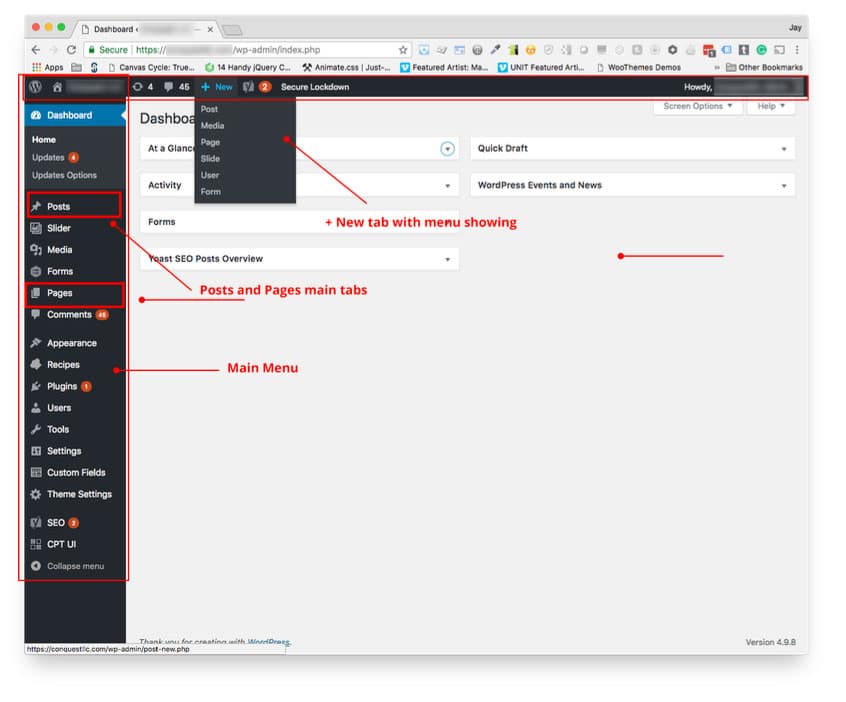
After logging in, the WP Dashboard displays. On the left side of the dashboard is the main menu consisting of all the major tools required to manage your site. At the top of the desktop is the incredibly handy admin bar that helps you access often-needed features without re-displaying the dashboard just to get to the dashboard menu.  

If you need to create a new blog post or edit earlier drafts or published posts, use the Posts tab from the desktop menu. You can also add new posts from the top menu under the “Add New” tab. If you want to create a new page or edit a page, use the Pages tab from the desktop or the admin bar.

When you choose to create a new post or page, you are immediately taken to the editing screen where you can enter a title and begin writing the other content. If you want to edit an existing post or page, you will be taken to the listing of posts or pages. Underneath the titles of the items are smaller links, including the edit link which will take you to the WP editor screen for that page or post.

WordPress Visual Editor Basics


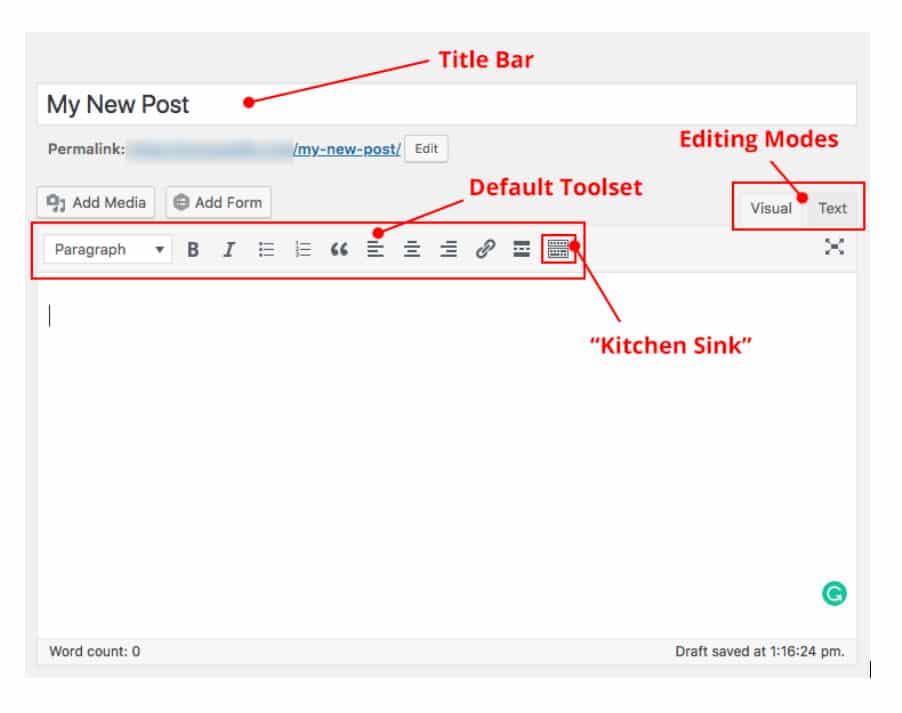
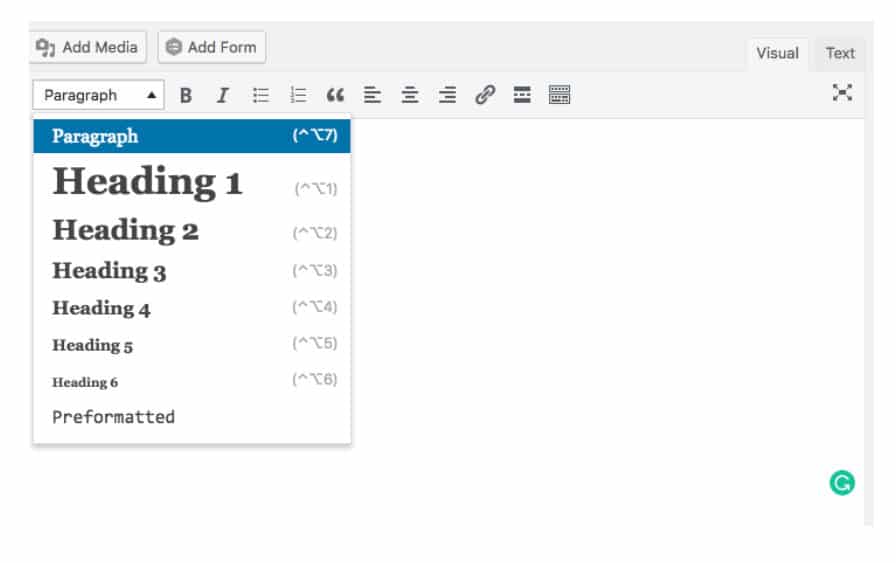
The WordPress Visual Editor displays an icon toolset familiar to anyone accustomed to writing documents at a computer. The most often used items display by default, including bold, italic, bulleted and numbered lists, block quote, text alignment, hyperlinks and (i.e., the full address to the published item), and the editing mode tabs: Visual or Text. We will explore the Text editor in a future post.

On the far left, next to the icon row is the extremely important format selection drop down, which assigns selected text to paragraphs or levels of headings. Using the formatting drop-down will add the appropriate HTML tags to the selected text, although you will not see the tags in the Visual Editor. Correct HTML text formatting is important for search engines in crawling and evaluating your content as part of calculating page rank in search results. In short, the formatting drop-down will make your content easier to find on the Internet. For example, it’s very important that the primary subject of your article is enclosed in an “H1” heading tag, with subheadings also assigned in their correct hierarchy of importance using H2, H3, H4 and so forth.

Using the formatting drop-down will also make your editing life easier because this will also supply the correct color, size and any other attributes required to display your content consistently and adhere to the overall style of your website.

Please also note that the editor itself does not use the same set of instructions to display elements that the public facing side of your website uses. This can be a bit disconcerting because the text you see is not styled like the text when viewed on your site. But, if you’re ever not sure how it will look, you can preview it without saving it, and you can even revert in the event you do save an edit you regret. More about those two life-saving features later.

The “Kitchen Sink”


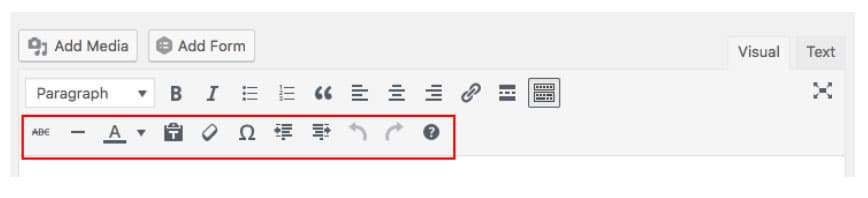
Pressing the far right (“Kitchen Sink”) icon will display additional tools often needed in content creation, including strikethrough, horizontal lines, text color, paste text without formatting, clear formatting, special characters, indentation, undo, redo, and keyboard shortcuts.

Paragraphs and Line Breaks: How WordPress does it.

When composing in the Visual Editor, press the Enter key where you need a new paragraph to occur. It is not necessary to select the text and assign it to a paragraph via the formatting drop-down. WordPress assigns the HTML for the paragraphs when the page is rendered in the browser. It’s important to understand that, because you won’t see the paragraph tags in the Text editor either unless you apply special formatting to an individual paragraph.

Sometimes you need to force a line break, such as when composing addresses. To do that you use Shift + Enter, the same way you are used to doing it with word processing software.

Bulleted and Numbered Lists

To create a bulleted list in the Visual Editor, simply hit Enter then type the list items, pressing the Enter key at the end of each. Then, once you’ve completed the list, use the mouse to select the entire list and press the Bulleted or Numbered icon from the tool set. WordPress will wrap all the items with the correct tags. Using Shift + Enter will supply a line break within a single list item but will not help you to create lists.

To create a sub-list, also called a nested list, select the group of list items that will be nested, then use the indentation icon. You’ll need to use the Kitchen Sink icon if the secondary row of icons is not displaying.

Columns!

Ordinarily, displaying content in columns, especially “mobile responsive” columns, on a website requires understanding HTML along with CSS (Cascading Style Sheet – which is where the instructions for how to display the HTML are written). As desktop screens get wider so do websites. This makes arranging content in columns a valuable and attractive way to present text and other content.

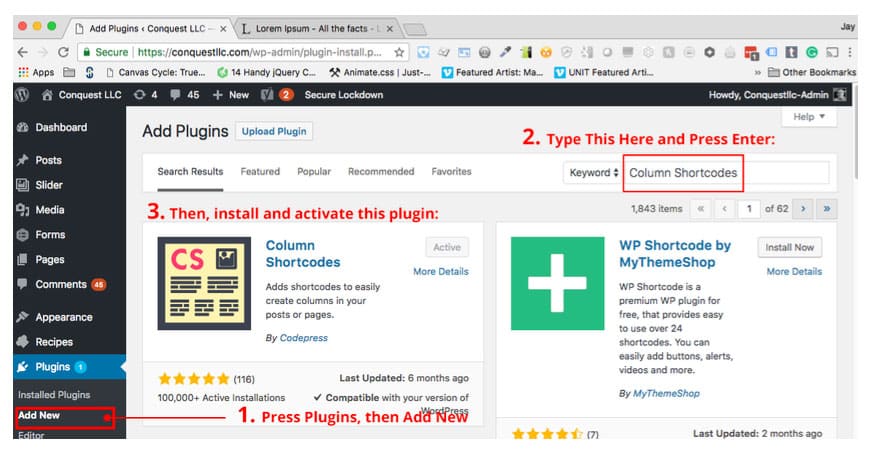
WordPress does not come with a built-in feature for adding columns as of this writing, so we will show you how to add that ability with a plugin called Column Shortcodes.

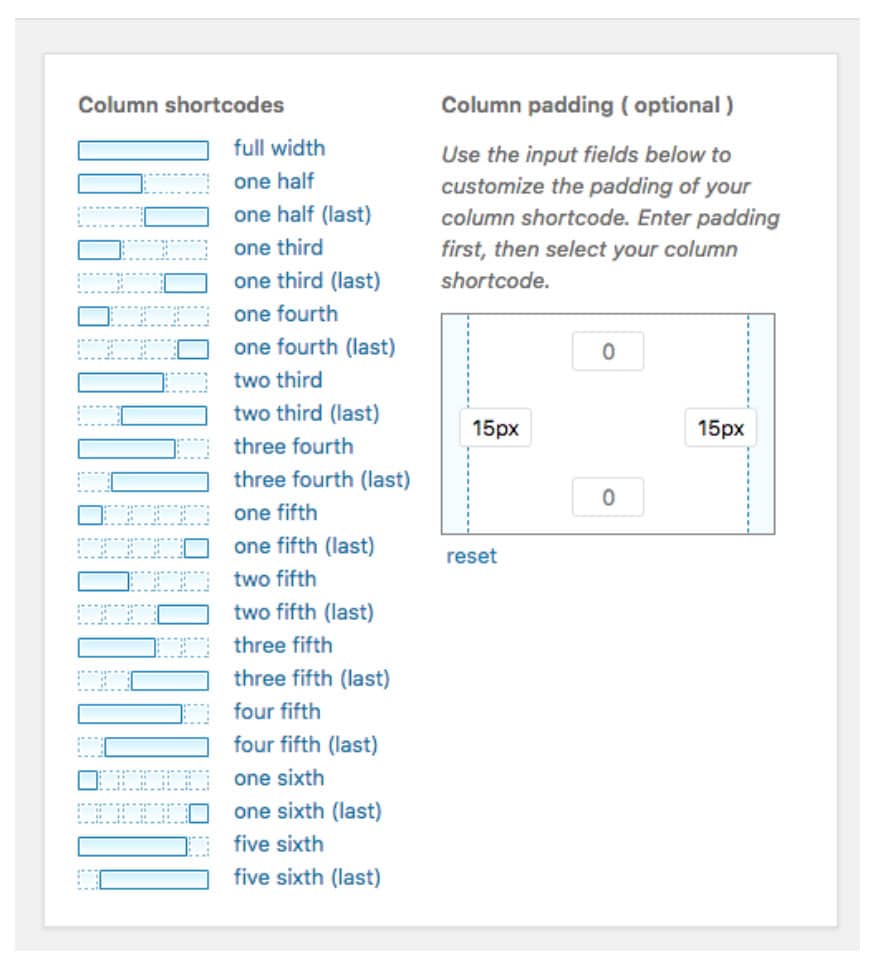
  1. Go to the Dashboard menu and choose Plugins, then Add New
  2. Search for “Column Shortcodes” in the search bar of the Add Plugins screen.
  3. Use the Install button to install the plugin, then press Activate after it installs.
  4. Then return to your post editing screen.

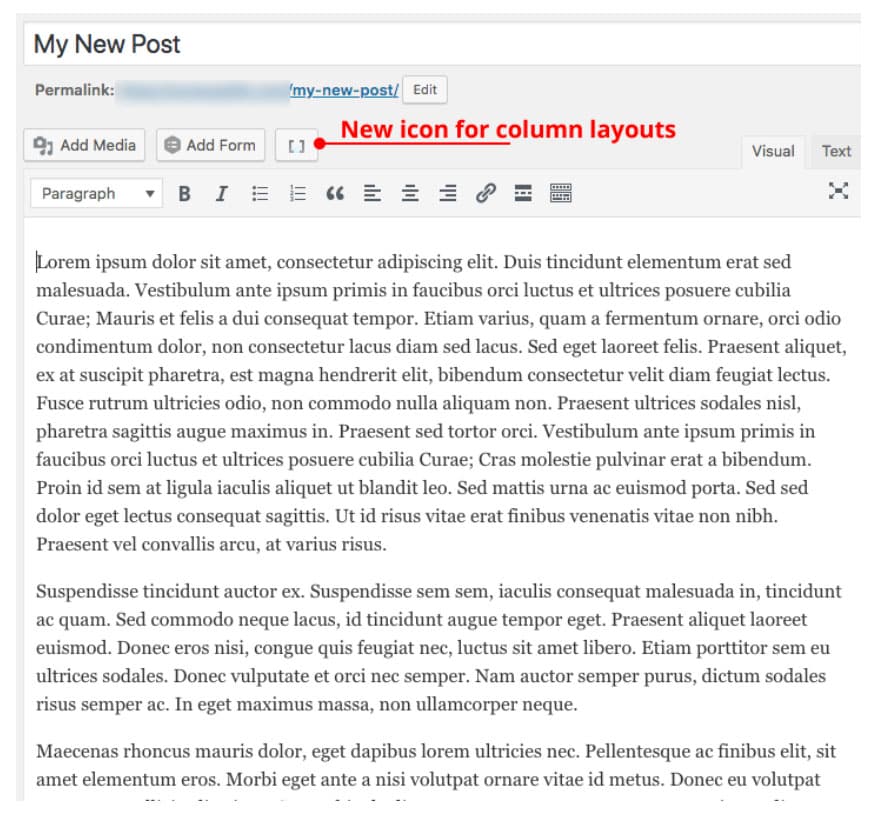
When you return to edit your post, you’ll see a new icon above the toolset. (If you don’t see the icon, it’s possible you did not activate the plugin after installing it. Go back to the listing of installed Plugins and click the Activate link.)
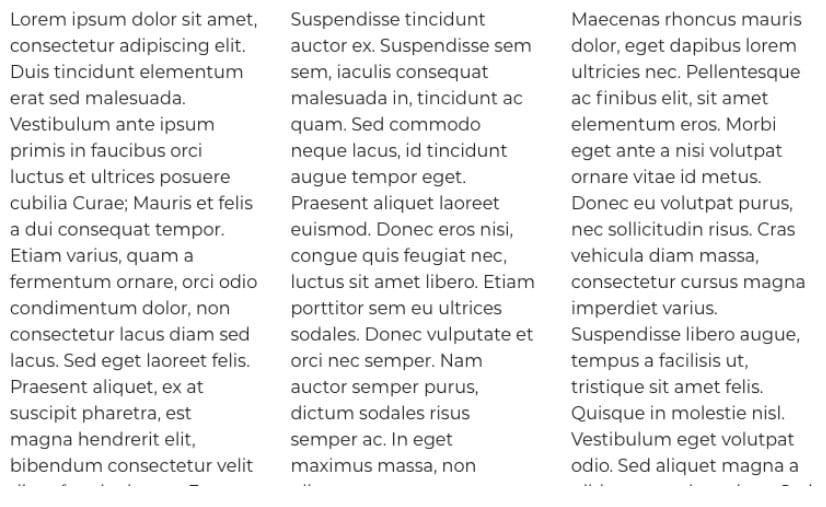
The following image shows some example content that has already been separated into paragraphs. These will become columns. 

  1. Place your cursor where you want the first column to appear.
  2. Then Click the column icon and the columns window appears.
  3. Since we need to create three columns, first we’ll enter some padding to create the column gutters. To keep it simple we’ll set all columns with the same padding on the right and left of 15px. Doing this will create gutters between the columns that are twice as wide (30px) as the value entered in the column padding widget, because the space will include the right side padding of a left column added to the left side of the adjacent column.

When you click “one third” the plugin will immediately place a column shortcode pair where you had your cursor. This will consist of the opening and closing shortcodes:

[one_third padding=”0 15px 0 15px”][/one_third]

  1.  
  2. Here’s where you need to be a little careful. Select all the text you want to be in the first column, then Ctrl-X (CMD-X on Mac) to cut it, then Ctrl-V or CMD-V to paste it between the two parts of the shortcode pair, like so:
  3. Repeat the process for the second column
  4. For the third (last) column, you need to place the cursor where your last column starts and click the column icon again to redisplay the columns menu. Fill in the padding (if it is not already) then select “one third (last)” this time. The final column shortcode pair looks like this:

[one_third_last padding=”0 15px 0 15px”]

  • There is a Preview button available in the upper right quadrant of the editor screen. It’s often a good idea to preview your changes, especially if you’re using a plugin you just installed. Click the Preview button to see how the content will appear:
  • The columns created by this plugin are responsive, meaning they will stack vertically when a small screen such as a mobile phone is being used to display the content.

    The next installment of the series will cover tables and how to use images and other media in your posts.

    In the meantime, learn how MARION’s Houston marketing firm, can deliver a Houston website design that will turn visitors into customers. Contact us today to learn more!

    Marketing emails you’ll actually want to read.

    Get marketing tips and news sent to 
your inbox.

    This field is for validation purposes and should be left unchanged.
    Name(Required)

    How to Tell if a Website Is Secure – Why & How to Change HTTP to HTTPS

    If you have a business website, you probably worry about security. This concern is especially likely if you collect sensitive information such as credit cards and social security numbers.

    In an age where hackers are constantly on the hunt for easy targets, website security should be one of your top priorities.

    One way to significantly improve the security of your website is to change HTTP to HTTPS for the transfer protocol of your site. Sites that don’t use HTTPS are essentially open books for hackers to crack open and read to their hearts content (to the detriment of your customers).

    If you’re asking yourself – how do I make my website secure? – please continue reading.

    What is HTTP & HTTPS

    HTTP stands for Hypertext Transfer Protocol, and it makes it possible for web users to transfer and receive information over the internet. HTTP is one of the most widely adopted application protocols online and its existence makes the modern web what it is today.

    HTTPS stands for Secure HyperText Transfer Protocol, and it operates in the same way HTTP works in that it allows web users to receive and transfer data.

    Why Use HTTPS, and Why Is HTTPS Important?

    The defining difference between the two transfer protocols is that HTTPS transports data using an extra layer of protection known as Secure Socket Layers (SSL).

    In most cases, SSL (known commonly as SSL certificates) is used to secure the transfer of data, confidential login information and credit card transactions. Simply put, HTTPS is the secure version of HTTP.

    change HTTP to HTTPS

    Do I Need an SSL Certificate for My Website?

    It doesn’t matter what type of website you run or the type of information you collect, it’s always beneficial to get an SSL certificate for your website. SSL certificates encrypt the data that users input so it remains secure as it travels from a user’s web browser to your server.

    Consumers are always wary of the many veiled security risks that can threaten their information each time they engage in online transactions (inputting a credit card number into an e-commerce site for example).

    Securing your website with an SSL certificate will give your visitors confidence that their information is safe within your database. It also adds credibility to both your business and your website because it communicates the message you’re serious about the security needs of your customers.

    HTTP vs. HTTPS SEO

    When it comes to Google SEO, HTTP vs. HTTPS makes a difference. Search engine are constantly evaluating which web pages provide the best experience for users.

    In addition to contextually addressing user queries, search engines look for measures of a site’s credibility. Because using HTTPS instead of HTTP makes your website more secure for users, Google sees this as a credibility booster.

    In August of 2014, Google announced that moving to HTTPS could give your site a subtle rankings boost. This makes the change to HTTPS even more critical for the performance of your site.

    How to Tell If a Website Is Secure

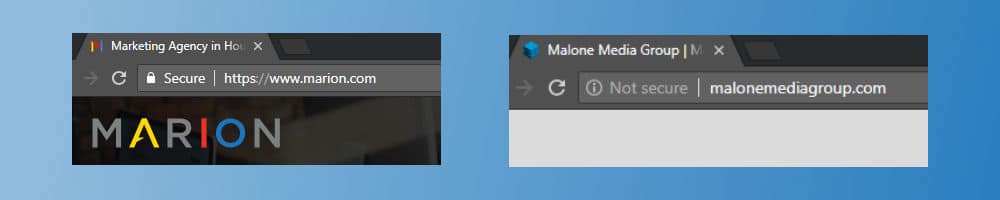
    It’s quite simple to determine whether a website is secure. Pull up a browser and type in the URL of any website. If the URL starts with “http://” the website is not secure. If it starts with “https://” that website is secure.

    It’s possible that a site has manipulated their server to show “https://” when they don’t have a valid SSL certificate. When you look to the left of your browser’s URL bar you can see “Secure” or “Not secure.” This is another sign of whether a site is secure.

    HTTP vs. HTTPS SEO

    Get into the habit of checking whether the sites you frequent are secure. This is especially important for websites that require you to enter highly sensitive information such as your credit card number or login credentials.

    If you’re interested in further verifying the security of a website, click on the green lock icon next to the “Secure” display in your browser’s URL bar. This should prompt a pop up to appear with in-depth security details.

    Are we saying HTTPS is the only security measure you need to protect your website? Of course not! Hackers can still compromise a website that’s protected by an SSL certificate.

    That’s why you need to perform follow up actions to ensure a website has multiple layers of security. One way you can do this is to read a site’s privacy policy. Most privacy policies will explain how your information is collected and used, and what security measures are in place to protect your private data. If a website doesn’t have an adequate privacy policy, that’s a red flag.

    Download this free guide about the 24 website must-haves that will evolve your digital marketing today!

    You should also check to see if the site’s contact information is up to date. Most security conscious website administrators will have a valid email where they can receive information pertaining to possible security issues. Keep on the lookout for social media icons, a valid email address, a telephone number and possibly a physical address if relevant.

    How to Change HTTP to HTTPS

    To enable HTTPS on your website, you’ll need an SSL certificate. SSL certificates are issued by a certificate authority or certification authority (CA).

    Not all security certificates are created equal. For example, 1024-bit security certificates provide less protection than 2048-bit certificates. Keep this in mind as you’re moving over to HTTPS.

    how to change HTTP to HTTPS

    .htaccess – Force SSL

    If you’re using an Apache server (most WordPress sites do), you will also need to include a URL rewrite rule that redirects your HTTP URLs to HTTPS. The code will look like the following:

    RewriteEngine On
    RewriteCond %{HTTPS} off
    RewriteRule ^(.*)$ https://%{HTTP_HOST}%{REQUEST_URI} [L,R=301]

    If your site uses the WordPress CMS, make sure you include the above code outside of the WordPress comment tags:

    # BEGIN WordPress
    # END WordPress

    Contact the experts at MARION for more help with WordPress development in Houston.

    SEO Concerns When Switching to HTTPS

    As you change to HTTPS Google will treat the transfer as a URL change and there’s a very good chance you will experience temporary ranking fluctuations until the transfer is complete.

    You will eventually regain the rank you lost. The major downside to this transfer period is you will miss out on vital organic traffic until you recover your rank.

    Regarding long-term SEO concerns, you should have nothing to worry about as long as you configure your SSL certificate correctly on your website. Configuring your SSL certificate incorrectly (such as pointing it towards the wrong domain) can affect your SEO negatively.

    To ensure you go about the process the right way, let’s look at Google’s process of switching over to HTTPS:

    • Determine the type of certificate you need for your site (single, multi-domain, or wildcard)
    • Update your robots.txt to allow Google to crawl your website
    • Ensure your site returns the proper HTTP status code
    • Use a 2048-bit key certificate
    • Ensure you maintain an up-to-date SSL certificate

    Of course, if you’re unsure of how to configure your SSL certificate correctly, turn the job over to professionals who know what they’re doing. It’s a much better option to pay a little bit of money up front to ensure the job gets done right the first time.

    Understanding Why HTTPS Is Important

    It’s a no brainer why you should use HTTPS over HTTP. Google is becoming more and more stringent against sites who have yet to make the switch. Furthermore, sites who don’t use an SSL certificate run the risk of losing the trust of their visitors.

    If your website is still using HTTP switch over as quickly as you can to avoid any negative repercussions. MARION’s Houston marketing agency can help.

    If you’re a small to medium sized business our combination of SEO services and custom web design services in Houston will ensure you not only stand out from the competition with a beautifully crafted website, but you also have a sound SEO strategy to rank well on Google.

    Contact us today to learn more about our services.

    Marketing emails you’ll actually want to read.

    Get marketing tips and news sent to 
your inbox.

    This field is for validation purposes and should be left unchanged.
    Name(Required)

    What is Growth Driven Design? – How to Begin Data Driven Website Design

    Redesigning a website can be a huge struggle for any business. It takes a lot of resources to redesign a website, and with the amount of work involved your marketing team will likely be pushed to their limits.

    Typically, a website redesign will require around three months of concentrated effort. That’s three months of your marketing team focusing their attention away from your brand’s recurring marketing efforts. Pulling away the main focus of your marketing team for such large stretches can be potentially harmful for your business.

    Thankfully there’s a faster more efficient method that can be used. This method is called growth driven design and it can truly transform the way you approach website design for your business forever.

    What is Growth Driven Design?

    Growth driven design (GDD) is an adaptive web design and digital marketing model. The core components of GDD are test, learn and adapt. The growth driven design methodology minimizes various risks commonly associated with traditional website design by focusing on meaningful data that reduces the time it takes to launch your site.

    In essence, GDD is a combination of marketing and design where the two goals are fused together to become one.

    How Does the Growth Driven Design Methodology Work?

    Growth driven website design is an ongoing process that leverages collected data (such as customer behavior on your website) in concert with continuous learning and constant testing to make strategic and impactful performance improvements to your website.

    Data driven web design calls for shorter planning which allows it to be accomplished in shorter amounts of time. This is a safer and more effective method of web design, and it ultimately saves the user money.

    The problem with traditional web redesign is that it can take three months or more to gather the data needed to make the proper design changes. This data includes usability testing, content audits, consideration of budget and so on.

    growth driven design

    The beauty of data driven website design is it doesn’t take up all the time and collective effort of your marketing team because it integrates itself with both marketing and sales.

    Analyzing the behaviors of site traffic can help both your marketing and sales team improve the way they go about accomplishing their goals and can help them improve the tactics and strategies they need to be successful.

    How to Implement Data-Driven Website Design at Your Own Business

    You could say it takes two phases to build a data driven website. The first phase is the strategy and launching phase. This will last around one month. The second phase is the development and continuous improvement phase. This phase will be continuously in use for the following eleven months.

    Getting started with the first phase of GDD

    The following three steps will help you execute the first phase of data driven website design.

    Strategy and buyer personas

    To begin, you should formulate your strategy and form goals so you have an idea of what you’re trying to accomplish. Next, create buyer personas to find out who your ideal client base is. This will also help you identify what customers care about and what they like, which will allow you to create an effective marketing strategy.

    data driven website design

    Auditing your website

    Once you’ve finished the above step, you will move on to a detailed website audit. You’ll analyze where your customers are coming from, your average bounce rate and how users interact with your site (amongst other analytics).

    Analyzing the above data should ultimately allow you to discover the pain points of your visitors which in turn will allow you to improve the overall user experience on your website. The goal of your website audit is to learn the behaviors of your visitors and why they perform specific actions. You can then act on that information and make improvements.

    Create a wish list

    The final part of the first phase is to create a wish list of everything you would like on your website that would improve the overall user experience. This can include an updated home page menu, implementing SEO for your About Us page, simplified navigation, additional pages, new calls to action, etc.

    Create a list where you gather both the changes you absolutely need for your website and the changes you’d like to make onto your website. As you proceed, you can begin moving the less pressing items further down the list which you’ll eventually target later in the 11-month cycle. Through this process of elimination, you’ll eventually figure out where your website’s true strengths and weaknesses lie.

    Phase Two of Growth Driven Design: Development and ongoing improvement

    The first stage takes place over the course of a month. The second phase will continuously be in use for the next 11 months.

    As opposed to redesigning a traditional website your full attention should be on the actions of your visitors. Your visitors should be at the forefront of your mind with every update, new feature, and new strategy you implement on your data driven website.

    growth driven design methodology

    With that being said, there are four steps to the development and ongoing improvement phase:

    1. Planning

    During this phase, you’ll constantly be analyzing your site’s performance on a month to month basis and comparing it to your overall goals for the site redesign. From the data you obtain, you can determine the goal’s that need to be accomplished in the future.

    2. Developing

    Working with the appropriate business units in your business (marketing, sales, etc.) you will create the tasks needed to improve your site based on user feedback. You will then create a marketing campaign to direct targeted traffic to your new and improved pages. Implement validation tracking codes to continuously track the metrics on your site so you can continue to make improvements by gathering additional data.

    3. Learning

    As you split test and experiment with improvements you’ll find that certain assumptions you’ve made, such as adding “more intuitive” navigation to your site to improve user experience, may not be what your data driven website needs after all.

    Therefore, you can throw that idea out and replace it with something that directly benefits your users. Perhaps you’ve identified that your website redesign SEO strategy will be more beneficial to focus on in the immediate future.

    4. Transfer

    The final step is to transfer the data you’ve gathered to your marketing team. Your team can then proceed to use that data to improve their ability to locate and attract your ideal customer.

    Implementing growth driven design for your website

    There are numerous data driven website advantages you can enjoy if you go about the process correctly. Data driven web design is all about improving your website in small, meaningful chunks until you create the ultimate user experience. You should always be analyzing data to make future improvements.

    At MARION, we know what it takes to build and continuously manage a growth driven website. Marion is a full-service marketing firm that offers highly rated custom website design services. We build every website with the client’s brand and bottom line in mind. Our experienced team has helped hundreds of industry-leading brands build effective websites that have grown their businesses, and we can do the same for you.

    Contact MARION today for help with building a data driven website for your business.

    Marketing emails you’ll actually want to read.

    Get marketing tips and news sent to 
your inbox.

    This field is for validation purposes and should be left unchanged.
    Name(Required)

    Advantages of Custom Web Design vs. Website Templates for Your Business

    If you’ve been paying attention for the past decade or so you’ve likely noticed that it’s easier than ever to build a website for your business. With website builders like Wix, Squarespace, and WordPress simplifying the website building process, many businesses might be wondering why they should bother with custom web design in the first place.

    With that being said, both custom web design and website templates have their pros and cons and tend to be suited for specific audiences.

    What is custom web design?

    True custom web design involves building a website from scratch using code. There are no templates involved, no pre-packaged graphics or anything of the sort. Many people falsely believe that fully customizable website templates count as custom web design. Website templates only allow you to personalize web pages within predefined boundaries. Custom web design, on the other hand, allows you to control every aspect of the design process.

    It takes a significant skill set to create a fully customized website. If your business doesn’t have an in-house web developer, you’ll likely reach out to a digital marketing agency to create a custom website for you.

    Advantages of custom web design for your business

    custom web design vs. website templates

    Web development website templates may be easy to use, but they’re very rigid when it comes to true customization. Let’s look at the advantages custom web design can offer for your business.

    Unique design

    One of the main advantages of custom web design is your ability to create unique websites. Essentially, you can make your site look like anything you want, and you won’t have to deal with the limitations of working with a premade template.

    In fact, you can go as far as to make a custom template that’s unique to your business. That’s the beauty of using custom web design – you have complete control.

    Access to a professional team of developers

    Learning how to find a good web design company will give you access to a team of professional developers who can help you troubleshoot problems and get you your site up and running with minimal turnaround. Troubleshooting services aren’t always necessarily free, but professional-grade quality rarely is.

    advantages of using a template in web design

    With the price tag however, comes the peace of mind that if anything ever goes wrong with your custom website, you can call up your web developer and have them fix it for you. This is opposed to website templates where most of the troubleshooting either falls upon yourself or someone in your staff who’s website savvy.

    Your site will be kept up to date

    A website template may or may not be updated depending on how active the developer team is. However, a top-of-the-line agency that offers custom web design services in Houston will always be on top of keeping their code up to date. Additionally, they’ll always be watching for changes to the Google algorithm and update your website accordingly to help you stay ahead of the curve.

    Just as scalable as it is manageable

    Building your website from the ground up means you can continue adding to your site as often as you like. In fact, there’s nothing to stop you from contacting your web developer and having them add new features every month.

    On top of being scalable, a custom website may also make managing your business much easier. For example, you can tweak the way you collect email addresses for marketing when visitors land on your site. Website templates only allow you to manage your website to a limited degree. With custom web design the possibilities of customization are only limited by the skill of your web developer.

    What Is a Website Template?

    Website templates are premade web pages that can be easily customized with videos, blogs, images and more. There are literally thousands of website templates you can purchase online that offer all manner of designs and styles. Most website templates are easy to install though some are easier to work with then others.

    With so many website templates floating around online, the quality of the template may vary and so can the level of support you receive from the development team. Website templates are perfect for smaller businesses or personal use.

    Advantages of Using a Template in Web Design

    what is custom web design?

    There are several perks of using digital website templates that can benefit your business’s marketing ROI, speed-to-market, and hiring efforts.

    Not as expensive as custom website services

    This may not be much of an issue for larger, well-established businesses, but startups, smaller scale businesses and solopreneurs are often pinching pennies just to make ends meet. Website templates are cheap, many of which can be purchased for as low as $45.

    High-end templates are relatively affordable. With providers like Blue Host offering affordable pricing to host your website, it’s no wonder so many people rely upon website templates to build their sites.

    You can build a website quickly

    If you know what you’re doing, you can throw together a decent templated website in an hour or less. You don’t have to worry about working with code or any of the other tedious aspects of creating a customized website. Essentially the hard part has been taken care of for you. You can simply drag and drop until you’re satisfied.

    Practically anyone can build a website with a website template

    To piggyback off the previous point, just about anyone can build a website nowadays with a good website template. Some templates require a learning curve, but many are drag and drop meaning it doesn’t take much brain power to throw together a decent website.

    Check out our list of website must-haves for your upcoming redesign.

    Do Web Designers Use Templates?

    Custom web design and website templates are not always mutually exclusive. It is entirely possible for a graphic design agency to create a visually appealing and engaging state of the art website design that a web developer then transposes into a scalable template.

    This process depends on the needs of your internal team. If content marketing is a small business marketing strategy that works for your internal team, then templates are very important. For consistently styled content that doesn’t require custom code every time you want to add a web page, your web designs need to be applied to templates.

    Check out MARION’s WordPress web design in Houston for scalable website designs that your marketing team can manage.

    Custom Website Design vs. Website Templates – Which Is Right for You?

    As you can see, there’s no one right choice for every situation. Every business is different, so you need to focus on your specific needs. If you’re a startup with a tight budget and you don’t have the time or expertise to methodically put together a complicated custom website, then digital website templates are likely the best option for you.

    On the other hand, if you’re searching for a website that’s fully customizable, unique, built to code and gives you complete control, then you’ll be better off with a custom website.

    Contact MARION’s Web Design Team for Help

    Ultimately, the needs of your business as well as your personal preference will play a huge role in which option you choose. As stated before, website templates tend to be the domain of smaller businesses with tight budgets, whereas customized websites tend to be the preferred choice for larger well-established businesses.

    If you’re interested in building a custom website for your business MARION can help. Our team of award-winning web developers will be able to create the ultimate website that captures the essence of your brand. Our web design services are top-notch and we’re here to help you.

    If you want to work with a highly rated team contact us today.

    Marketing emails you’ll actually want to read.

    Get marketing tips and news sent to 
your inbox.
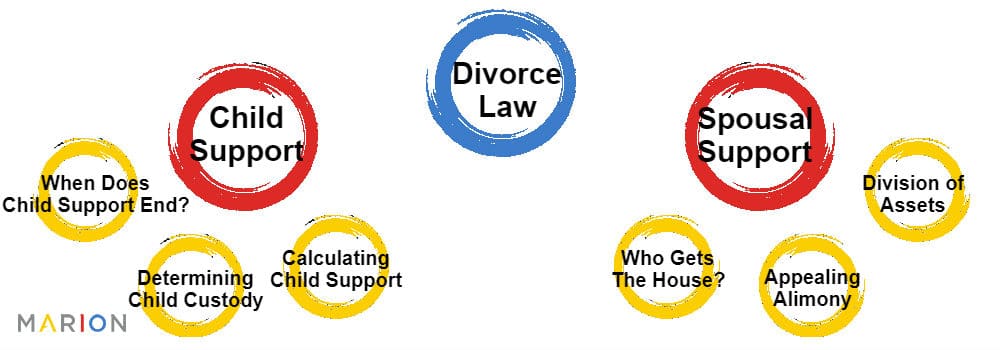
    This field is for validation purposes and should be left unchanged.
    Name(Required)

    How to Write an About Us Page

    Writing an effective and engaging About Us page involves finding the right balance between following digital marketing best practices while avoiding the formulaic. A good About Us page should establish your authority, outline your experience, and tell your company’s story in a way that showcases the brand’s unique personality, voice, and style.

    Learning how to make an About Us page for a website is not as easy as you might think. Here are a few tips and examples to help you get started creating a professional About Us page for your company.

    Writing an About Us Page for a Website

    From SEO keywords for About Us pages to your unique selling proposition, writing an optimized About Us page is about painting a picture for your current and prospective clients. Demonstrate what you can do, prove that you can deliver, and add a little flair to illustrate how you stand out from the competition.

    What to Put on About Us Pages

    The best About Us pages are often wildly creative and draw prospects in by helping them to establish a connection to your company’s story. While there are no hard and fast rules to predict what will make a successful About Us page, there are definitely a few guidelines to consider when creating your website:

    Establish a Mission and Vision Statement

    Who are you? What do you believe? What are your goals and what do you bring to the table as a company and brand?

    Writing an About page for a website that includes a strong, solid mission statement that clearly outlines the company’s philosophy and methods will keep your prospects reading and wanting to learn more. Here are some ways to improve About Us information on websites:

    • Tell your company story with relatable anecdotes and real-world examples
    • Go light on buzzwords and industry jargon, and avoid overly broad and superficial statements
    • Show that you know your customer by addressing a problem – and how you are in a unique position to solve it
    • Establish trust by offering proof of your success across social media, awards, client testimonials, and relevant press coverage and mentions

    Learn more about writing an effective mission statement today!

    Formatting is Your Friend

    There is no greater truism in web design and content marketing than this: the information on your website’s About Us page is only as good as the layout and formatting.

    Breaking up long blocks of text into shorter, succinct paragraphs and using subheadings and bullets throughout will make the content on your page stand out and much easier to digest. Learning how to write an About Us page in a visually appealing way can really help position your brand in a positive light.

    If you have great testimonials from current and former clients, consider using the best ones in pull quotes to really emphasize your experience and best success stories. Also keep in mind that while content may be king, visuals go a long way in telling a story and keeping the reader interested. Professional and well-designed images like photographs and infographics are essential to making your About Us page really pop.

    SEO Keywords for About Us Pages

    When it comes to SEO, About Us pages can be leveraged a few different ways. If your unique value proposition is closely tied to a keyword group, you can use SEO keywords for About Us pages that reflect that value propostion.

    For example, if you offer consulting services that leverage lean six sigma, your homepage might be focused on “consulting services,” or a more local SEO marketing approach, like “consulting firms in [city].” Writing a good About Us page for that same company might include keywords revolving around “lean six sigma” or “six sigma manufacturing.” Because lean six sigma is what sets your consulting firm apart from the rest, you can use those unique keywords for your About page.

    In most cases, your unique value proposition won’t be tied to a strong keyword group like our example above. If your homepage is about digital marketing, you don’t necessarily want to optimize your homepage for the same terms. Doing so could cause keyword cannibalization, and negatively impact the rankings of your homepage.

    SEO keywords for About Us page

    Typically, SEO for About Us pages won’t be a priority, but make sure you don’t noindex/nofollow the page. Your About page has the potential to pick up a lot of backlinks, so nofollowing it would be detrimental to your link building strategy. About Pages also typically show up as sitelinks for your brand searches, so noindexing it would force Google to replace that real estate with another page that doesn’t communicate your brand as thoroughly.

    Schema Markup & Technical SEO About Us Page Tips

    The last, and perhaps most important About Us page SEO tip is related to structured data. Schema markup is a form of structured data that you can include on your website to help search engines better understand your content. There are different schema types that you can use across your site.

    For example, there is a schema type called LocalBusiness that lets you identify details about a local business location with special code. When it comes to schema for your About Us page, you will want to use SiteNavigationElement markup. This will help your about page show up in the sitelinks when someone searches for your brand. You can find an example of MARION‘s About Us page being marked up with SiteNavigationElement schema below.

    About Us page SEO snippet

    4 Examples of the Best About Us Pages

    The best way to get started is by drawing a little inspiration from websites that have mastered the About Us page writing game. You want your own page to be unique and one of a kind, but studying what makes good About Us pages work can help you pick up useful tips about what works when you are putting together your own strategy. Here are a few examples of About Us pages that hit all the right notes.

    Pret

    how to write an About Us page

    Pret gets things going by asking (and answering) a question that may very well be on an unfamiliar consumer’s mind “What on earth is Pret?” They follow it up by explaining how they are more than just another coffee and sandwich chain. It’s short, to the point, and uses a well balanced mix of text and visuals.

    Bulldog Skincare

    the best About Us pages

    Whether your company is named after a dog or not, who can resist an adorable picture Man’s Best Friend – which is exactly what Bulldog skincare banks on with the image on their About page. They create a brand name by using a reinforcing image that sets the tone for their mission statement – to provide men with all natural skin care products.

    Nike

    writing an About page for a website

    Does Nike even need an About Us page one might wonder? Rather than resting on the reach and name recognition of the ubiquitous “just do it” slogan, Nike’s About page uses an image and text elevating regular people to athlete status to illustrate that their products are made for anyone on the move.

    Rather than using an image of professional athletes, Nike’s About page becomes instantly relatable and creates a connection with the average consumer by allowing them to literally picture themselves in the shoes.

    Eight Hour Day

    SEO About Us page

    If you want your customers and prospects to know who you are, the easiest way is to literally show them. The Eight Hour Day team uses images of their workspace, complete with adorable office dog, to straightforward descriptions of their creative process and sources of inspiration.

    Contact MARION Today

    Don’t leave your digital marketing results up to chance. Engage with a creative marketing agency like MARION, and start elevating your brand today!

    For more information on how our marketing firm can help grow your bottom line, contact Marion today.

    Marketing emails you’ll actually want to read.

    Get marketing tips and news sent to 
your inbox.
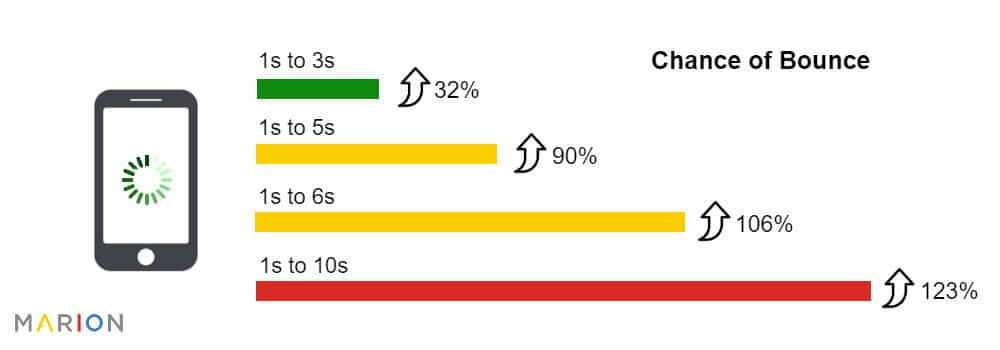
    This field is for validation purposes and should be left unchanged.
    Name(Required)